Pages

Tuesday, April 18, 2017

Web Performance and Load Test - the Web Test Recorder plugin loads but controls are grayed out in Windows 10 with IE 11

I had an issue with IE 11 where the Web Test Recorder was loading but all controls were grayed out.


I verified the “Web Test Recorder 14.0” and “Microsoft Web Test Recorder 14.0 Helper” add-ons were enabled in IE.

Then reset and restarted IE under (Tools> Internet Options> Advanced>Reset).  After that all IE add-ons were then disabled.  I re-enabled the Web Test Recorder add-ons when prompted. 

That resolved the issue with the controls being grayed out, but then I was getting a missing DLL exception clicking Pause or Stop during the recording: "System.DllNotFoundException: Unable to load DLL 'Microsoft.VisualStudio.QualityTools.RecorderBarBHO100.x64.dll': The specified module could not be found. (Exception from HRESULT: 0x8007007E)"

This site said to copy the DLL to the IE folder to resolve the missing DLL exception.
Copy Microsoft.VisualStudio.QualityTools.RecorderBarBHO100.dll (For older versions RecorderBarBHO90.dll  etc)  located under C:\Program Files (x86)\Microsoft Visual Studio 14.0\Common7\IDE\PrivateAssemblies

To – C:\Program Files\Internet Explorer and for 64bit machines also Copy To – C:\Program Files (x86)\Internet Explorer

I copied the DLL to the IE folders and the issue is now resolved.

Friday, April 24, 2015

Execute the TestComplete TestExecute module remotely on a VM using PSExec

Using the SysInternals tool PSExec.exe to launch TestExecute and run a project on a VM.

  1. Login to VM as normal user
  2. Run PSExec from command line (or batch file) on local machine.  I was having trouble with this; needs to be username not in quotes and password in double quotes.
C:\SysInternals\PSTools\PsExec.exe \\TESTVM -u domain\user -p "P@$$w0rd" -i \\TESTVM\C$\Users\testaccount\Downloads\TestExecuteRemote.bat
  1. User launching PSExec.exe is the same user logged in to the VM (without admin rights)
  2. -i option executes interactive
  3. TestExecuteRemote.bat contains command line to call TestExecute that looks like this:
:: Run TestExecute and export log to c:\LOG\ExportLog.mht
:: Log file cannot exist or test will fail to run
:: Test account needs write permission to the project folder (log is also generated under project)
"\\TESTVM\C$\Program Files (x86)\SmartBear\TestExecute 10\Bin\TestExecute.exe" \\TESTVM\C$\Test\ProjectSuite1\ProjectSuite1.pjs /r /e /DoNotShowLog /ExportLog:\\TESTVM\C$\LOG\ExportLog.mht

PSExec.exe has an option for -l to run as limited user, but the remote batch file failed to run using that option. 

Sunday, January 4, 2015

STEP #6: Add Custom Assertion to UIMap1.cs file that verifies properties of an HtmlHyperlink add call to assertion method and code to log messages using TestContext.WriteLine to CodedUITestAmazon.cs

Expand UIMap1.uitest in solution explorer to see the two files: UIMap1.cs is where we add the custom code and UIMap1.Designer.cs contains generated code which is just the definitions of the controls on the page in this case

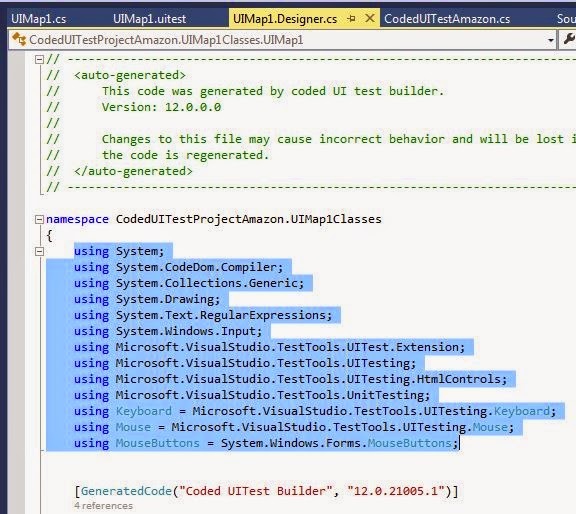
Double Click UIMap1.cs and UIMap1.Designer.cs to open both files and copy using directives from UIMap1.Designer.cs to UIMap1.cs


Add custom Assertion Method to UIMap1.cs that validates properties of an HTML Hyperlink

Add call to Assertion Method to CodedUITestAmazon.cs and log messages using TestContext.writeline in a new [TestMethod]

Select Build>Build Solution

Open Test Explorer under Test>Windows>Test Explorer

Select Test Method name, right click, and “Run Selected test”

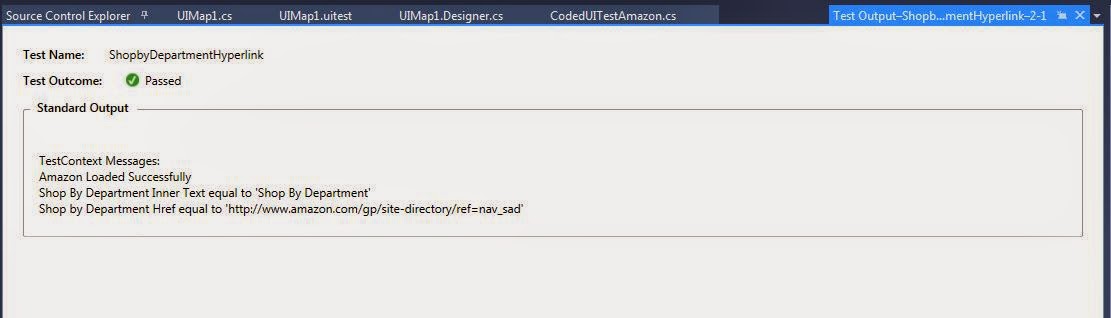
Test Runs: Loads IE to www.amazon.com validates properties of hyperlink and logs messages to Output: result is displayed in TestExplorer

Click Output link to view messages that were logged

STEP #5; Add code to TestInitialize section of the CodedUITestAmazon.cs file that loads IE, browse to URL, and log message

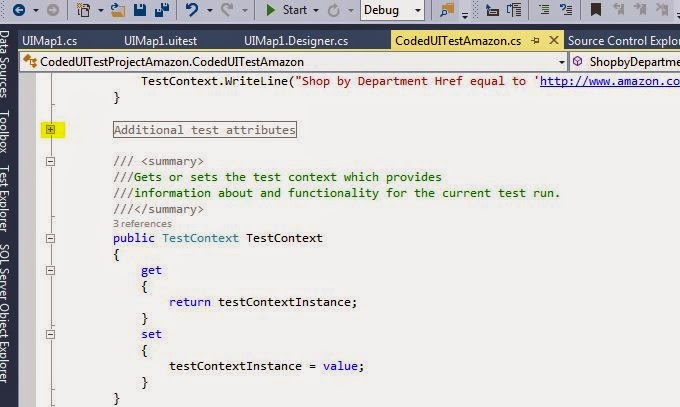
Click + sign to expand region named “Additional Test Attributes” where the TestInitialize section is located in CodedUITestAmazon.cs file

Select [TestInitialize] code and uncomment using toolbar button

Add code to launch a new browser window and log a message using TestContext.WriteLine

STEP #4: Add the Using directive and Constructor to the CodedUITestAmazon.cs file

Open CodedUITestAmazon.cs file - double click in Solution Explorer
Add using directive to enable calls to custom methods and assertions that will be added to the UIMap1.cs file

Scroll to the end of the file to add the Constructor to make a new instance of UIMap1 named UIMap after “private TestContext testContextInstance”


Friday, January 2, 2015

STEP #3 Add Controls to UIMap1.uitest - this is a partial class so the generated code will be added to UIMap1.Designer.cs and we'll add custom code to UIMap1.cs

Load IE and browse to Amazon.com
Go back to Visual Studio, right click UIMap1.uitest and select “Edit with Coded UI Test Builder” and the builder loads in the lower right corner with Amazon.com open in IE

Left click and hold down the Cross Hair button, then drag to highlight the control to be added to the UI Map

Click the double arrow in top left corner and the UIMap is displayed

Click button in upper left corner to add the control to the map

The checkmarks turn dark gray but the UIMap has not been updated yet

Click the Generate code button to add controls to the map

You are prompted that there are no code changes except updates to the UIMap

Click Generate button and close the builder to return to Visual Studio
Double click UIMap1.Designer.cs and search for the control that was added - This tells you which properties the tool uses to identify the control on the page

UIMap1.Designer.cs contains the generated code that gets overwritten each time the solution is built


STEP #2: Rename the default CodedUITest1.cs file and dependencies

Right click CodedUITest1.cs file in Solution Explorer and rename to CodedUITestAmazon.cs
Hit Enter and you will be prompted with message: “You are renaming a file. Would you also like to perform a rename in this project to all references to the code element ‘CodedUITest1’?”

Click Yes and name is changed where the green indicators are displayed in the left column

You can also rename in the comments from CodedUITest1 to CodedUITestAmazon


STEP #1: Create New CodedUITest Project and manually add UIMap named UIMap1.uitest instead of UIMap.uitest Create CodedUI Test Project and add new UIMap1.uitest file

Run Visual Studio from Start menu and Select File> New> Project
Select Templates> Visual C#> Test> CodedUITest
Enter name for Project and same name is used for the Solution, make sure Add to source control is unchecked, and click OK

Click Cancel at message at prompt “How do you want to create your coded UI test”

Right click Project and select Add> New Item
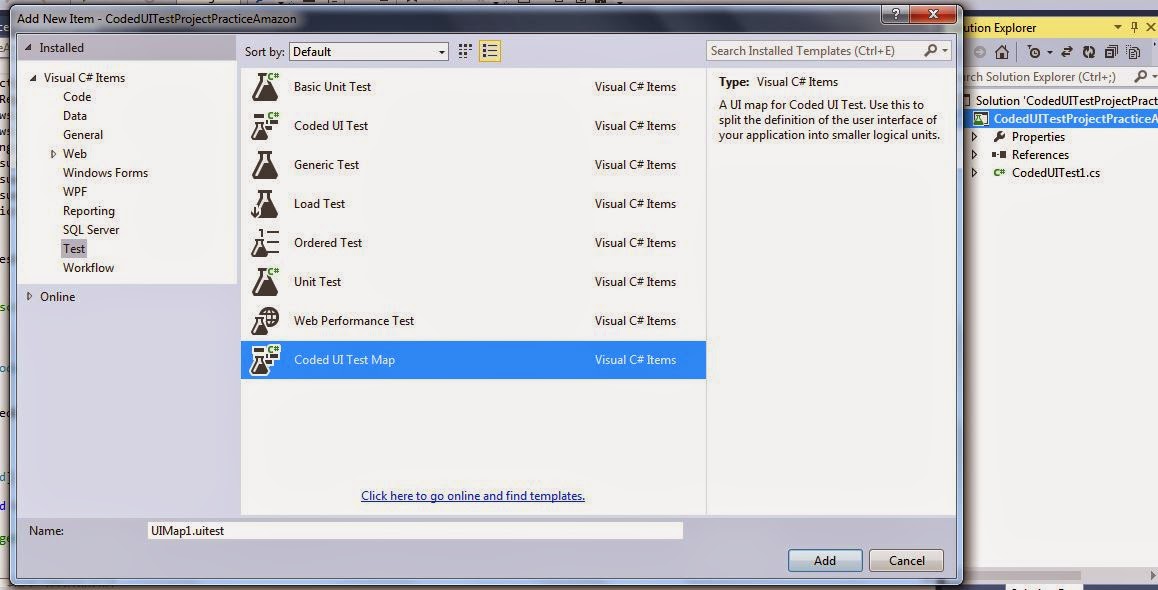
Select Test under Visual C# items, select Coded UI Test Map, keep default name of UIMap1.uitest, and click Add

The CodedUI Test Builder loads - Click X in upper right corner to Close

Now you are back to Visual Studio with an empty UIMap1.uitest


Tuesday, December 30, 2014

CodedUI Test manually add assertion method, log messages using TestContext.WriteLine, and using UIMap named UIMap1.uptest instead of UIMap.uitest

I am creating this post about manually updating CodedUI Tests as part of a training exercise for another QA Engineer.

I used Amazon.com as an example, but it 's the same idea with any web application.

Here are the requirements of the CodedUI Test Project:

  1. We don't want to use the CodedUI Test Builder to generate the methods and assertions - we will use the builder to update the UIMap and then hand code the methods and assertions; hand coding of assertions and methods is a good idea because we can avoid extra code that gets generated like hover, mouse over, ect.
  2. Create a UIMap named UIMap1.uitest instead of UIMap.uitest - this is because we are going to hand code the assertions and methods; potentially we could make a separate UIMap for each section of the web application
  3. Generate logging messages using TestContext.WriteLine("message"); -- we could also use Console.WriteLine("message);
  4. Browse and load site using TestInitialize section of the CodedUITest.cs file
  5. Add multiple [Test Method] statements to one CodedUITest.cs file instead of one [TestMethod] for each CodedUITest.cs file
  6. When the test is run the test method is selected from the Test Explorer - this is a good idea because we have a better idea where the failure occurs if we name our Test Methods with meaningful names


STEP #1: Create New CodedUITest Project and manually add UIMap named UIMap1.uitest instead of UIMap.uitest

STEP #2: Rename the default CodedUITest1.cs file and dependencies

STEP #3: Add Controls to UIMap1.uitest - this is a partial class so the generated code will be added to UIMap1.Designer.cs and we'll add custom code to UIMap1.cs

STEP #4: Add the Using directive and Constructor to the CodedUITestAmazon.cs file

STEP #5; Add code to TestInitialize section of the CodedUITest.cs file that loads IE, browse to URL, and log message

STEP #6: Add Custom Assertion to CodedUITest.cs file that verifies properties of an HtmlHyperlink and logs messages using TestContext.WriteLine

Tuesday, July 29, 2014

Configuration Manager 2012 Client Actions

Configuration Manager 2012 Client Actions can be run independently from schedules that are configured in Configuration Manager Console through Control Panel>Configuration Manager on the client machine.

1) Application Deployment Evaluation Cycle: This evaluation Cycle is applicable to software deployments (applications) .This action will re-evaluates the requirement rules for all deployments and make sure the application is installed on the computer. The default value is set to run every 7 days.

2) Discovery Data Collection Cycle:  This action can be considered as Heartbeat Discovery cycle and will resend the client information to site and keeping the client record Active. This is also responsible to submits a client's installation status to its assigned site(Status:Yes).If you are migrating the client from SP1 to R2 or R2 to CU1 ,it takes time to get the client version update in Console and update action is carried out by this Cycle. Heartbeat Discovery actions are recorded on the client in the  InventoryAgent.log.  Computers accidentally deleted from the configmgr console  will automatically "come back" if it is still active on the network. Wait for the next heartbeat inventory cycle, try running Discovery Data Collection Cycle manually, or use custom script. Refer to this link for more information about what is sent back

3) File Collection Cycle: This action is to search for a specific file that you have defined in the Client Agent settings (Software inventory > collect files).  If the software inventory client agent finds a file that should be collected, the file is attached to the inventory file and sent to the site. This action differs from software inventory in that it actually sends the file to the site, so that it can be later viewed using Resource Explorer. The site server collects the five most recently changed versions of collected files and stores them in the \Inboxes\Sinv.box\Filecol directory. The file will not be collected again if it has not changed since the last software inventory was collected.  Files larger than 20 MB are not collected by software inventory. Maximum size for all collected files (KB) in the Configure Client Setting dialog box displays the maximum size for all collected files.  When this size is reached, file collection will stop. Any files already collected are retained and sent to the site.

4) Hardware Inventory Cycle: The first and very important action to send client inventory information. This is where most time is spent troubleshooting  about why the client is not reporting inventory from X days .Many folks think that, hardware inventory is actually getting information about hardware but it is more than that. It inventory information about add and remove programs, OS info, RAM, disk and many things. Hardware inventory is WMI inventory that collects the information from WMI , based on the settings you defined in Client agent settings—>Hardware inventory .Configmgr client will collect only the information that you have selected/customized in client agent settings  and send it to server. Hardware inventory information will be logged into inventoryagent.log

5) ID MIF Collection Cycle Management Information Format (MIF) files can be used to extend hardware inventory information collected from clients by the Configuration Manager 2007 hardware inventory client agent. During hardware inventory, the information stored in MIF files is added to the client inventory report and stored in the site database, where you can use the data in the same ways that you use default client inventory data. Two MIF files can be used when performing client hardware inventories: NOIDMIF and IDMIF. By default, NOIDMIF and IDMIF file information is not inventoried by Configuration Manager 2007 sites. To enable NOIDMIF and IDMIF file information to be inventoried, NOIDMIF and IDMIF collection must be enabled. You can choose to enable one or both types of MIF file collection for Configuration Manager 2007 sites on the MIF Collection tab of the hardware inventory client agent properties. For more information about enabling MIF collection for Configuration Manager 2007 sites during hardware inventory, see Hardware Inventory Client Agent Properties: MIF Collection Tab.

6) Machine Policy retrieval and Evaluation Cycle: This action is to download policies assigned to the client computer. Anything that you assign to a collection (group of computers) like client agent settings or applications related to deployment. This action will be triggered based on a schedule defined in Client agent settings (Policy polling interval (minutes). This action results will be logged into policyagent.log, Policyevalutor.log, and policyagentprovider.log

7) Software Inventory Cycle: Unlike hardware inventory, software inventory, inventory information about file system data and file properties such as .EXE. You can customize what executable files to be inventoried which allows admins to report on software inventory. When this action runs, it inventories the information in the file header of the inventoried files and sends to the  site. This information will be logged into inventoryagent.log on the client. If you are experiencing slow software inventory issues, refer to this link
What is the difference between Hardware and Software Inventory? 
* Hardware Inventory uses WMI to get the information about computer  
* Software Inventory works on files to get information in the file header

8) Software Metering Usage Report Cycle: The name itself says, metering which means, configmgr client monitor and collect software usage data for the software metering rules that are enabled on the Site .Client computers evaluate these rules during the machine policy interval and collect metering data and send it to site.

9) Software updates deployment evaluation Cycle: This action will initiate a scan for software update compliance. This action evaluates the state of new and existing deployments and their associated software updates. This includes scanning for software updates compliance, but may not always catch scan results for the latest updates. This is a forced online scan and requires that the WSUS server is available for this action to succeed.  This action results will be logged into couple of log files on the client: scanagent.log (scan requests for software updates), UpdatesStore.log(Status of patches like missing, Installed),UpdatesDeployment.log(update activation, evaluation, and enforcement, notify about reboot) etc. More info about software update compliance

10) Software Update Scan Cycle: This action scans for software updates compliance for updates that are new since the last scan. This action does not evaluate deployment policies as the Software Updates Deployment Evaluation Cycle does. This is a forced online scan and requires that the WSUS server is available for this action to succeed. This action results will be logged into WUAHandler.log (if Scan is succeeded or not), UpdatesStore.log(Status of patches like missing, Installed),and  scanagent.log (scan requests for software updates) etc

11) User Policy retrieval and Evaluation Cycle: This action is similar to Machine Policy Retrieval & Evaluation Cycle, but this will initiate an ad-hoc user policy retrieval from the client outside of its scheduled polling interval. This action results will be logged to policyagent.log, Policyevalutor.log, and policyagentprovider.log

12) Windows Installer Source list update cycle: This action also very important while installing MSI applications. This action causes the Product Source Update Manager to complete a full update cycle. When you install an application using Windows Installer, those Windows Installer applications try to return to the path they were installed from when they need to install new components, repair the application, or update the application. This location is called the Windows Installer source location. Windows Installer Source Location Manager can automatically search Configmgr 2012 distribution points for the source files, even if the application was not originally installed from a distribution point.

Wednesday, May 7, 2014

IE11/IE10 Blank Page

I was seeing a blank screen in IE11 every time I opened it after installing on a new laptop. This started happening after hitting and exiting IE before closing out of the Developer Toolbar. Tried rebooting, but couldn't get IE to work correctly. 

Found these steps to correct the issue:

1) Start IE11 (or IE10) via the Start->type "Internet"->Select the Internet Explorer (without addons)
2) Once it is up, press F12 to bring up the developer window on the bottom.
3) Once it is up and stable, close it via the X in it's upper corner (the developer window, not the IE11).
4) When the developer window is fully closed, close the IE11 (or IE10).
5) Now try to open IE11 (or IE10) normally to see if it is working.

Monday, January 20, 2014

The old True, False, NULL problem

Say you've got an application where a new check box was added to the screen and a new column was added to the table. The possible values of the check box are are True and False. Maybe the existing rows in the table are set to NULL when the new column is added.

Are existing rows updated?

Does the column have a default value?

Does the application break on rows where the column is set to NULL?

I think existing rows should be set to True or False, but sometimes they're not.

It seems confusing if NULL is being interpreted as True or False.

Just something to check for.

Thursday, January 2, 2014

CodedUI test - check for existence of dialog


If the application has a dialog that is only displayed in certain cases you can write a custom method to execute commands when the dialog exists. This application has a dialog that is only displayed if an add-in could not be loaded.

Execute certain commands when dialog exists:

1. Record the assertion and action on the dialog.

2. Write a new method in UIMap.cs to check for existence of the dialog and execute the recorded assertion and the recorded action.

3. Move calls to the recorded assertion and recorded action from CodedUITest.cs to new method in UIMap.cs.

if (dialog.Exists)
{
    AssertDialogRecorded();
    DialogActionRecorded();
}


4. Add a using statement to UIMap.cs for Microsoft.VisualStudio.TestTools.UITesting.WinControls:


5. Call the custom method from CodedUITest.cs in place of the recorded assertion and the recorded method.
this.UIMap.ClickOKIfDialogExists();


Tuesday, December 31, 2013

TestContext.BeginTimer() not writing to test output in VS2013


I am running Visual Studio 2013 Ultimate and can't get TestContext.BeginTimer("TimerName"); and TestContext.EndTimer("TimerName"); to write to the Output window of a CodedUI Test.

This post has a good solution to the issue.

I want to log the duration for groups of test steps.

First I tried writing a logger class and sending the duration to a text file.

This way seems easier to me:

1. Open the Coded UI Test .cs file and add a using statement for System.Diagnostics;


2. Create new instance of Stopwatch and give it some name (Timer in the example), add Timer.Start(); and Timer.Stop(); statements around actions that you're logging duration of, then add statement to write to test output TestContext.WriteLine("Description: " + SomeName.Elapsed.ToString());


3. Reset the timer next time and you can reuse it:


4. Run the test from Test Explorer, select the CodedUITestMethod in the upper pane under Passed Tests, and then click the Output link in the lower portion to view duration.

5. The output window will also show debug trace messages if EqtTraceLevel is set to 4 in QTAgent32.exe.config. TestContext messages are below the Debug Trace messages.


Wednesday, May 16, 2012

Reset Selected Radio Button using JavaScript


You could use JavaScript to reset a selected radio button and test if a value is required on update. 

Here's a description of running JavaScript in the IE Developer Toolbar to clear a radio button for a web app or web site.
  1. View page source and search for radio to find the element name where checked = True
  2. Copy paste the element name "radio1" text in the JavaScript below
  3. to open Developer Toolbar
  4. Click the Script tab
  5.  Copy paste script to console on the right and click “Run Script” to set the selected radio button to false 

Tuesday, June 14, 2011

Microsoft Test Manager - Test Scribe Power Tool


I read about this Power Tool at Safari Books Online “Software Testing with Visual Studio 2010”.


Requires MS OpenXML SDK 2.0 (installed if missing)

Requires Office 2010 (not installed if missing)

This adds the Tools menu to Test Manager where you can view the test run summary in grid format. Select one or more Test Cases and generate a Test Run Summary Report.

Tuesday, May 24, 2011

DSN error message

I got a strange error when an ODBC Data Source existed in the 32-bit Data Sources and was missing from the 64-bit Data Sources (ODBC) =  "The specified DSN contains an architecture mismatch between the Driver and Application". I added the DSN to 64-bit control panel to fix it. The error message made it seem like I used the wrong ODBC driver, but really it was unable to find the DSN.